A client asked for an Articulate Rise 360 course to move employees from email to Teams. Before building in Rise, I storyboarded the course, then used Claude and Claude Code to build a rapid prototype styled to look like Rise. The client clicked through every lesson and confirmed the direction before we developed the final course in Rise.
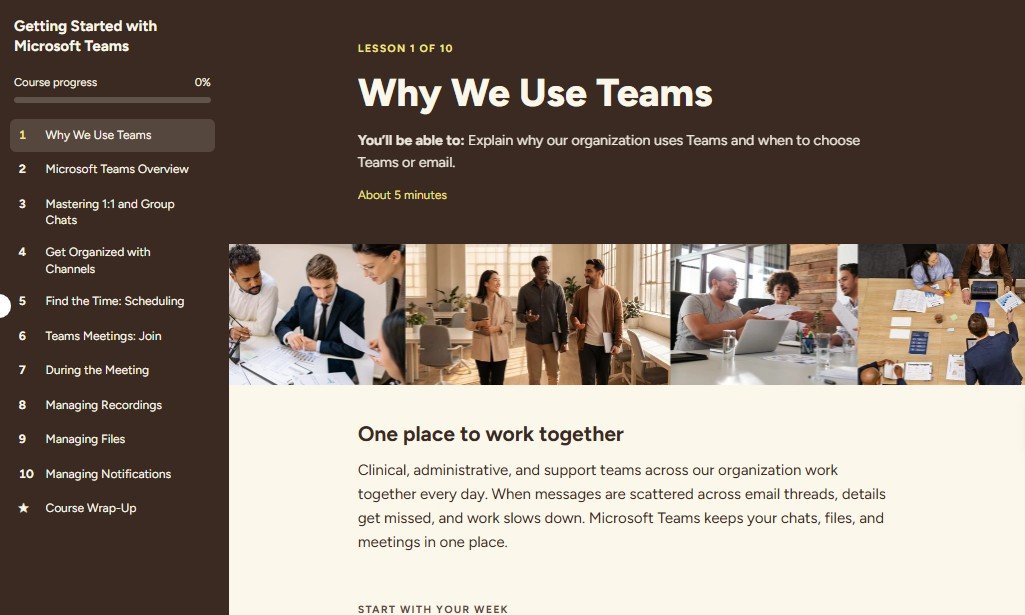
Lesson 1 of the rapid prototype, built with Claude Code and styled to look like Rise: course menu, progress tracking, and a clear objective up front.
The organization was rolling out Microsoft Teams, but conversations, files, and decisions still lived in long email chains. The subject matter expert (SME) provided an outline of what employees needed to know, and the client wanted the training built in Articulate Rise 360.
Turn the SME outline into a Rise 360 course on Teams for every employee, from first login to managing notifications.
Change a habit: make Teams the primary place for conversations, files, and decisions, while email keeps its place for formal notices and outside contacts.
A software-training course can easily become a feature tour. The behavior change, Teams first and email second, had to run through every lesson, not just the introduction.
Building directly in Rise would have meant hours of block-by-block work before the client saw anything she could click. A rapid prototype let us agree on the direction first.
Gave Claude the SME outline with clear guardrails: a linear Rise 360 microlearning storyboard for adult learners, built on Knowles' adult learning principles, low cognitive load (short paragraphs and bullet points), and WCAG accessibility.
Mapped each of the 10 lessons to an objective and specific Rise blocks: scenarios, process steps, labeled graphics, callouts, and knowledge checks. Added a course map, design notes, and a build list of assets still needed.
Used Claude Code to turn the storyboard into a clickable prototype styled to look like Rise, with a lesson menu, progress tracking, scenarios, and scored knowledge checks. It isn't a Rise course; it's a fast stand-in that shows what the Rise course will do.
The client clicked through real interactions, not just a document, and confirmed the direction of what to deliver and develop based on her requirements and needs.
With the direction approved, we developed the final course in Rise 360.
Every choice came back to how adults learn new tools at work: they need a reason, relevance to their job, and a chance to try it.
Lesson 1 opens by asking learners how many emails their last project took, then introduces Maria, whose project update spiraled into 35 emails.
Why: Adults commit to learning when they see the problem it solves in their own work.Five messages carry through the whole course: chat for quick conversations, channels for team updates, files where collaboration happens, transparency over private threads, and Teams as the main workspace.
Why: Repeating the behavior change in context keeps the course from becoming a feature tour.Most lessons follow the same pattern: a scenario, a short process, a key callout, and a knowledge check, each in 5 to 10 minutes.
Why: A predictable structure keeps cognitive load low, so learners focus on the content, not on navigating.Lessons end with a small "Try it this week" task, such as moving one email thread into a channel. The wrap-up turns these into a personal commitment list.
Why: Applying a skill right away is what turns training into a new habit.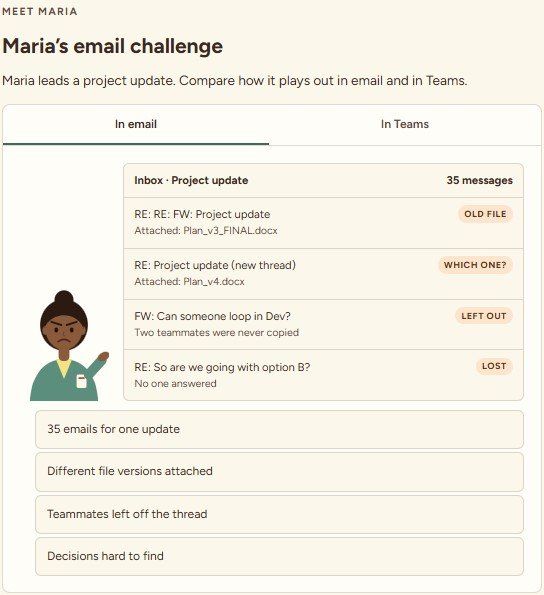
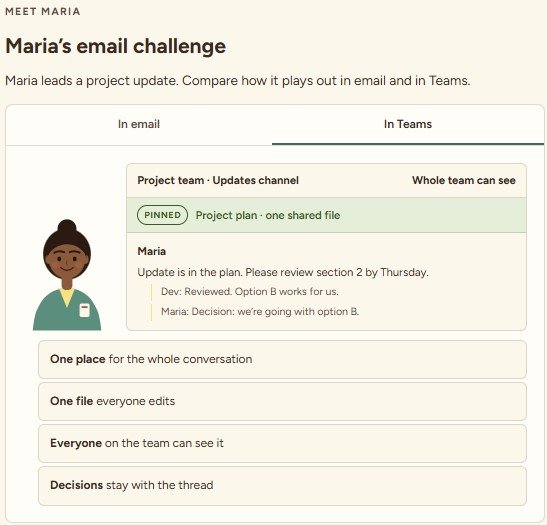
Learners make decisions, not just read about them. Every interaction gives feedback that explains the reasoning, including for wrong answers.
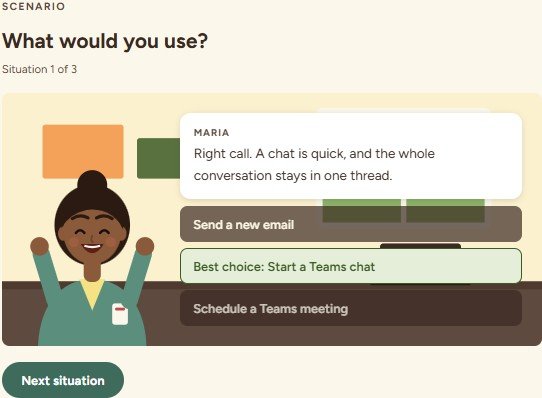
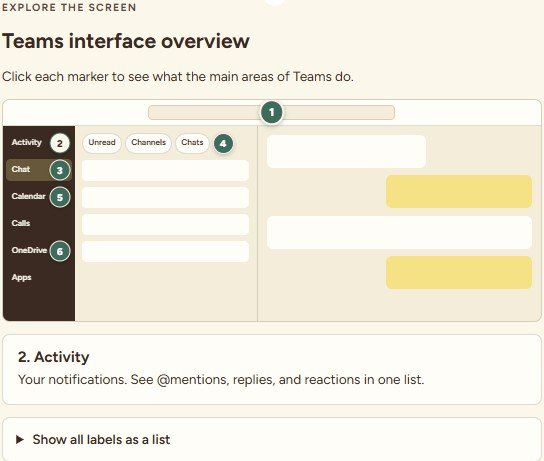
WCAG accessibility was a requirement from the first storyboard draft, not a final check. The prototype builds it into every interaction type.
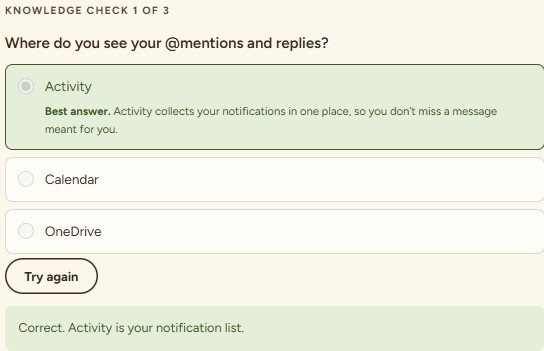
Built-in features:
The rapid prototype saved time and improved communication with the client. Instead of reacting to a document or waiting for a finished Rise build, she clicked through the suggested course and confirmed the direction of what to deliver and develop, based on her requirements, needs, and direction.
The final course was then developed in Articulate Rise 360. Placeholders in the prototype marked what the Rise build still needed: a leader welcome video, a meeting join demo, and screenshots of the client's own Teams environment.
I designed the course, set the instructional parameters, and reviewed every lesson. I used AI (Claude and Claude Code) as a build partner to draft the storyboard from the SME outline and turn it into a rapid prototype styled like Articulate Rise. That let the client see and react to the course in days, before we developed the final version in Rise 360.
I'd love to hear what you're rolling out and how we could turn it into learning people actually use.
Let's talk